Watch the page, then take the controls
The browser belongs inside the same boundary as the code and dev server. You still need a way to see it—and a handoff that cannot turn a stale page reference into the wrong click.
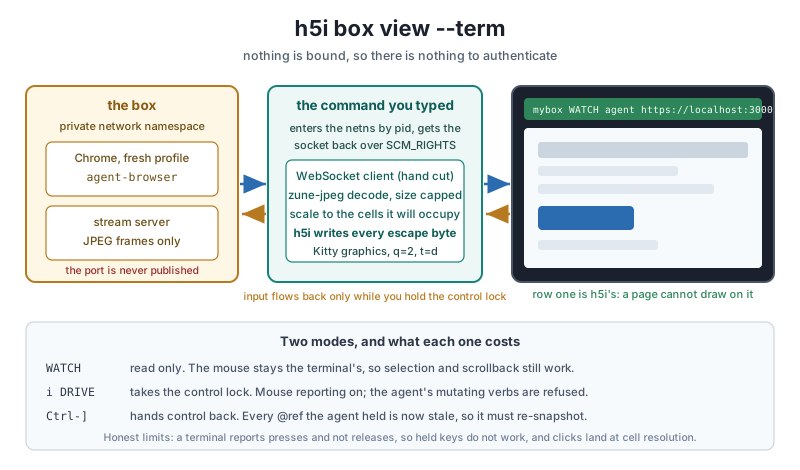
The browser is not a cosmetic add-on to a coding session. It executes page code, stores session state, reaches loopback, and turns visual behavior into instructions the agent can act on. Keeping it inside the box is what makes “open localhost” mean the disposable application rather than the developer's machine.
1. Create a browser box
$ h5i box create browser-demo --from HEAD --profile browser
$ h5i box shell browser-demo
The browser profile adds a fresh browser profile, the control daemon, and the socket access that daemon requires. Browser state is scoped to this box.
2. Start the app and browser in the same session
box$ npm run dev &
box$ agent-browser stream enable
box$ agent-browser open http://localhost:3000
box$ agent-browser snapshot
Keep the shell alive. At the isolated network tiers, the network namespace belongs to that session. The browser reaches the dev server on the box's own loopback.
3. Open a host-side viewer
$ h5i box view browser-demo
# Or, in a Kitty-graphics terminal:
$ h5i box view browser-demo --term
The browser viewer binds host loopback and uses a per-box token that the box cannot read. The terminal viewer binds nothing: it enters the box's network namespace, receives compressed pixels, and emits its own terminal escapes.
That last detail closes a less obvious direction. Terminal output is active: escape sequences can manipulate the window, clipboard, and graphics state. The box never writes raw escapes to your terminal. It supplies bounded compressed pixels over the stream; the trusted host viewer creates the Kitty graphics commands.
4. Take control explicitly
$ h5i browser status browser-demo
$ h5i browser take browser-demo
# interact in the viewer
$ h5i browser release browser-demo
Taking control invalidates every page handle the agent held. When control returns, the agent must take a new snapshot before it can act. A stale handle is refused instead of being resolved against a page that may have changed under human hands.
5. Review browser evidence with the code
$ h5i box export browser-demo --out ./browser-review
$ less ./browser-review/report.md
The report can include console errors, uncaught exceptions, failed requests, and viewer sessions. It can show that a human took over; it cannot claim the page was correct merely because someone viewed it.
Read the status row before the page
In terminal mode, row one belongs to h5i. The page cannot draw over it. It shows the box name, watch or drive mode, current control holder, page origin, egress posture, and error count. The origin is particularly important: a convincing login page and the application under test can render the same pixels.
Watch mode leaves the terminal's mouse alone so selection and scrollback continue to work. Drive mode enables mouse reporting and sends input to the box while you hold the lock. The distinction is visible because silently stealing terminal input would make observation itself unsafe.
The lock is enforced at the browser choke point
When the human holds control, mutating agent verbs are refused at the daemon's control socket. This is stronger than an instruction telling the agent to wait: the action does not reach the browser. The refusal is recorded.
The scope is still worth naming. The daemon lives inside the box, and there is no privilege boundary between it and a process determined to bypass the documented path. The lock coordinates a supported agent client; the outer box policy remains the security boundary.
Why the profile must be fresh
Pointing automation at a daily browser imports every live session, extension permission, saved credential, and browsing artifact. Copying that profile only creates a second credential archive. Headless mode changes rendering, not authority.
The browser profile creates state inside the box. It has never been logged into your cloud console or email. Its downloads land in the disposable filesystem. Its loopback contains the app under test. Its external network is the box's network policy. Those properties do more security work than a long list of “safe” browser verbs.
Collect page evidence independently
An agent can report “the page loaded correctly” after looking at a screenshot. h5i separately drains console errors, uncaught exceptions, and failed requests on its own timing. If no browser is available, the record should say unavailable instead of rendering an empty list that looks clean.
Use browser evidence to ask better questions. A failed request can explain an empty component. A console exception can identify a code path the screenshot hid. A viewer session tells the reviewer when human action may have changed state the agent later observed.
Terminal-viewer limits
- A terminal reports key presses, not reliable key releases, so held-key gestures do not work.
- Clicks land at terminal-cell resolution after scaling, which is less precise than a native browser surface.
- The terminal needs Kitty graphics support. If it lacks that protocol, use the loopback browser viewer.
- A viewer proves what frames and input crossed the bridge, not that the application behaved correctly.
If no frames arrive
Keep the box session running, confirm agent-browser stream enable succeeded, and check h5i browser status browser-demo. At isolated tiers the viewer finds the namespace through the live session's process, so an exited shell leaves no namespace to enter. If the dev server is missing, inspect it inside the same shell instead of publishing a replacement on the host.
Reference
- Browser and terminal viewer reference.
- Browser session and control-lock commands.
- Why browser authority changes the injection threat model.
- The local browser implementation.
Questions that come up
Does h5i publish the box's browser port?
Why do page references become stale after a handoff?
Can I watch over SSH?
Why sandbox the entire AI agent workload
Dependencies, tools, tests, servers, and browsers all execute during a coding task.
Put localhost inside the boundary
Let the agent exercise the same application you are watching without publishing its internal ports.